graphic design - music - photography


The posts are based on researches, the lecturer's materials, and my opinions.
Sorry if I made any kind of mistakes.

Welcome!
Showing posts with label Digital Design. Show all posts

Tuesday, 25 February 2014

Redesign WWF Newsletter

HI GUYS!

I want to tell you guys about my newspaper, by the way sorry for the late update :-p :-p here's my newsletter for WWF. But before that I'll show you the steps:

1. Research some example of newsletter

2. Search the newspaper from advertising agency, fonts foundry, non-government organisation (NGO), financial institution (e.g. Bank, Insurance, etc.), and design company.
and what I got was WWF e-Newsletter
I chose November E-news: Polar Bears Waiting at the Edge


3. Make the mood board!

 4. Try to make the newsletter

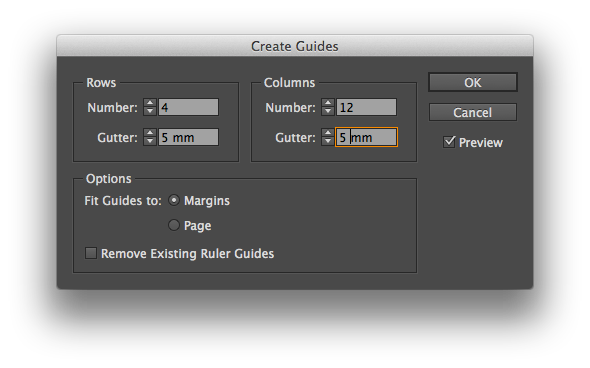
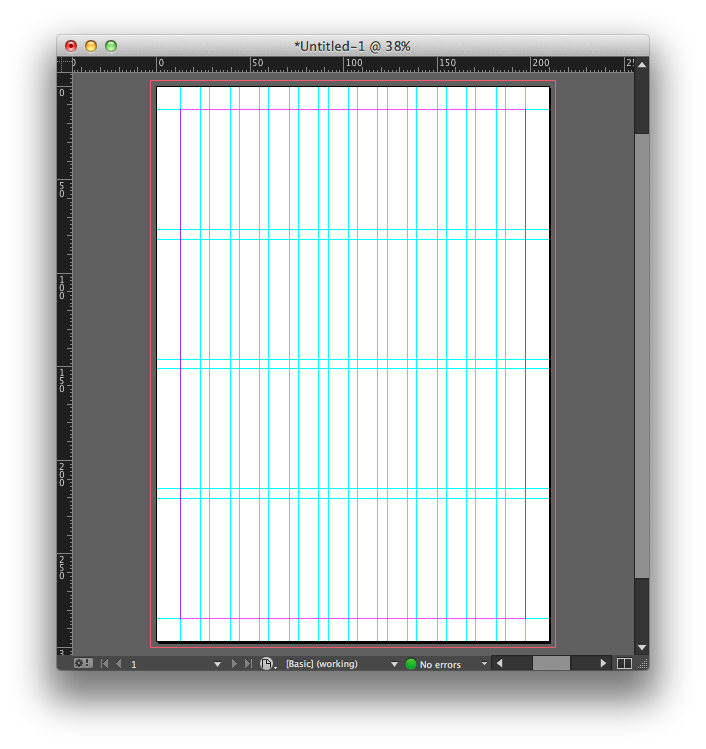
I made 12 column and 4 rows

Sir Em gave me some advices:
- On printed newsletter, I don't need to show (print) everything that contains link that we have to click. Printed newsletter doesn't need that. For example like twitter, facebook, and others
- "2 or 3 colours are enough"
- the layout must be consistent
- must contain front and back cover
- minimum 8 pages (including the covers)


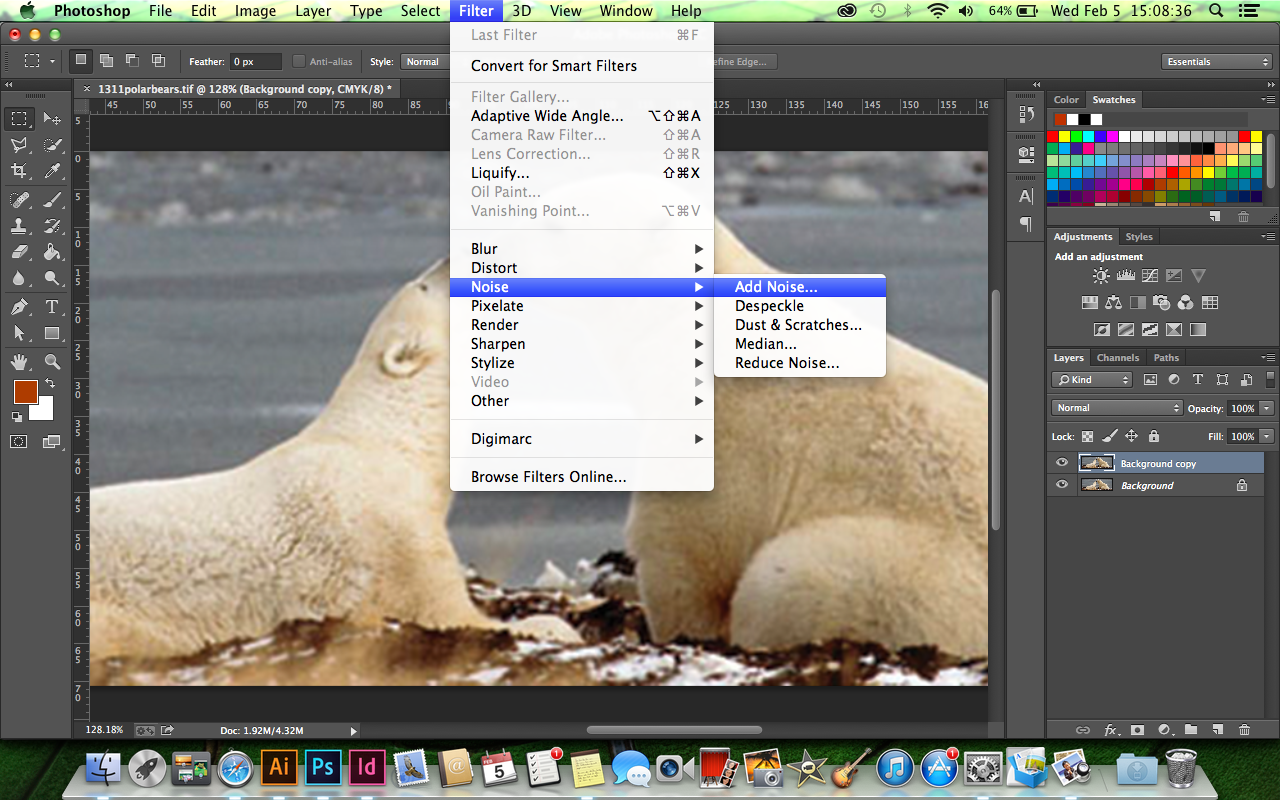
don't forget to change the image size. the image size supposed to be 150-300 pip if you want to print it.


to reduce the pixelated image, you could add noise by clicking Filter > Noise > Add Noise

5. Then I made this newsletter

I made the logo by tracing with Adobe Illustrator:


Wednesday, 29 January 2014

InDesign pt. 3 & 4

Wednesday, 15 January 2014

continuing InDesign pt.2

7.  Clipping Path

 
the background of Duck.jpg was removed by Clipping path 

8. Text and Column


click the the red + to continue the text

9. Text Path

make the path using pen tool
click text on the path 
write something, the text will follow the path
see the difference
we can flip the text by using this ^ 
i try to make the other path :-P
10. Tables

make the box
table > insert table 
follow the instruction
adjust the column  
I use UPPERCASE for the first row 
Be creative! by changing the text color and fill ;)
you can adjust the table easily by showing the table toolbar
the table outline

11. Glyphs
type > glyphs

12. Exercise Weather
first line left indent
to make it easier, show the paragraph tool bar: type > paragraph
space before, space after 

i use small caps for the sub-heading 
here's the result after I make some character formatting 
drop cap
kerning: adjust the letter's gap 

make the link to align right 
make it smaller
make the heading
done!

13. to make Paragraph & Character style
so we wouldn't have to format the word/sentence one by one
change the workspace into advanced. click window > workspace > [advanced] 
paragraph style for the sub-heading
see? by only clicking the paragraph style that we've set on the paragraph style box
paragraph style for drop cap
character style, red coloured text.